4 min read
Badgerlytics MCP: your analytics, inside the AI assistant you already use
New in Badgerlytics. Connect Cursor, Claude, Codex, and other AI assistants to your real analytics so they can answer questions with live numbers and set up events, funnels, and feature flags for you. Included on Pro plans and above.
Your team already has an AI assistant open all day. Developers live in Cursor or Claude Code. Marketers and product folks have Claude or another chat assistant pinned in a tab. Until now, every one of those assistants had the same blind spot: it knew nothing about how your site was actually performing.
So you'd switch tabs, open a report, copy a number, paste it back, and explain the context. Then do it again for the next question.
The new Badgerlytics MCP removes that round trip. It connects the assistant you already use straight to your Badgerlytics account, so it can answer with your real numbers and, if you let it, make changes for you.
Why this matters
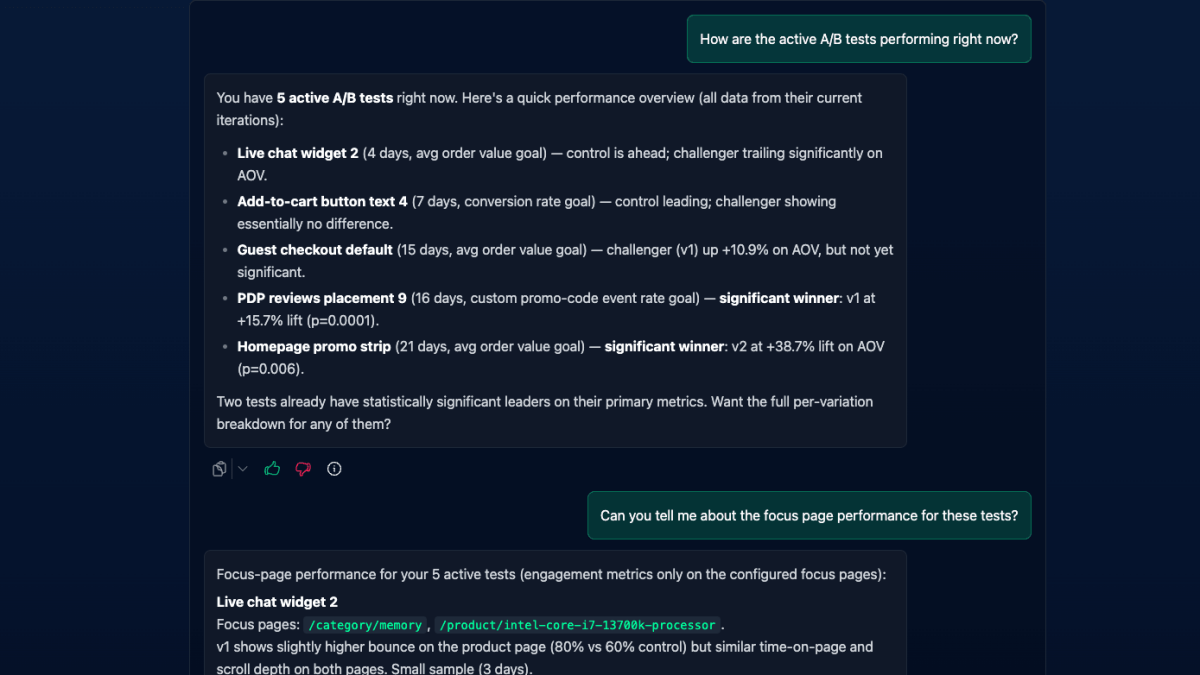
Answers where the work happens. A developer shipping a checkout change can ask "did conversion move since Tuesday?" without leaving their editor. A product manager writing a launch recap can pull the numbers into the same conversation where they're drafting it.
Real data, not guesses. Ask a generic assistant about your conversion rate and it will politely make something up, or tell you it can't know. Connected to Badgerlytics, it looks it up. The figures match your dashboard because they come from the same reports.
Setup without the clicking. Creating a custom event, a funnel with five steps, or a feature flag for a new page is normally a handful of forms. Now it's a sentence: "Create a funnel from pricing to signup to first project." The assistant fills in the details and tells you what it made.
Analytics and code in one conversation. This is the part developers tend to love. An assistant that can see your code and your analytics can add the tracking for a new event, register that event in Badgerlytics, and later tell you how often it fires. Or wrap a new pricing page in a feature flag and create the matching flag in the same breath.
What you can ask
| Goal | Try asking |
|---|---|
| Check a launch | "How did traffic and conversions change in the 7 days since we launched the new homepage?" |
| Find a problem | "Which pages have the highest exit rate this month?" |
| Review a test | "How is the pricing page A/B test doing? Is there a winner yet?" |
| Understand revenue | "Where are people dropping out of the checkout funnel?" |
| SaaS health | "What was net new MRR last month, and why did people cancel?" |
| Set something up | "Create a custom event for newsletter signups." |
| Ship safely | "Create a feature flag for the new onboarding flow at 10% rollout." |
Two levels of access, your choice
Not every assistant, or every teammate, needs the keys to everything. Badgerlytics offers two separate connections:
- Reports is read-only. It can look at your properties, events, funnels, flags, and run reports. Nothing it does can change your site or your settings. This is the right starting point for most people.
- Management can make changes: create and archive events and funnels, set up audience traits and SaaS plans, and run feature flags and A/B tests from draft to finish.
You decide which one each person or tool gets. Management plays by the same rules as the dashboard, so an assistant can never do something you couldn't do yourself. Plan limits still apply, and running tests have the same locked settings they always do.
Built to ask first
Some actions touch your live site: starting or stopping a test, flipping the kill switch, deleting a draft or a trait. Our recommended setup teaches the assistant to stop and confirm those with you before it acts. Creating a draft flag is quick. Turning it on for your customers waits for your "yes."
Your account key also stays out of the conversation. The assistant never needs to see it, and Badgerlytics rejects any request that tries to pass one through a chat.
Getting started
- An admin or owner creates an API key in Settings → API Keys and picks Reports, Management, or both.
- Add Badgerlytics to your assistant. The Connect AI agents (MCP) panel on that page has ready-made setups for Cursor, Claude Code, Codex, Claude, and others.
- Ask a question about your site.
That's it. Most people are up and running in a few minutes.
A few things to know
- Summaries, not raw data. Answers are totals and comparisons for a date range, up to 90 days at a time. For detailed charts, open the report.
- One key per person or tool. That way you can switch off one connection without affecting anyone else.
- Pro plans and above. MCP access is included on Pro, Business, and Ultimate.
Where to go next
- Setup instructions and the full list of what each connection can do: MCP for AI agents.
- Prefer to stay inside Badgerlytics? The built-in AI Chat Analyst answers the same kinds of questions without any setup.
- New to flags? Read A/B tests and feature flags: same switch, different jobs.
Quick answers
- What is the Badgerlytics MCP?
- A way to connect AI assistants such as Cursor, Claude Code, Claude, and Codex directly to your Badgerlytics account. Once connected, the assistant can read your reports and, if you allow it, manage your custom events, funnels, audience traits, SaaS plans, and feature flags.
- Can an AI assistant change my live A/B tests?
- Only if you give it a key with Management access. Reports access is read-only. Management follows the same rules as the dashboard, and our recommended setup tells the assistant to confirm with you before starting, stopping, or archiving a test, using the kill switch, or deleting anything.
- Are the numbers the same as my dashboard?
- Yes. The assistant pulls from the same report data you see in Badgerlytics, in summary form, for up to 90 days at a time.
- Which plans include MCP access?
- Pro, Business, and Ultimate. Starter accounts can upgrade to unlock it, and the upgrade takes effect immediately.