3 min read
Custom events: track the thing you actually care about
Register an event, fire it from code or a click, attach metadata, and use it as a funnel step, an audience rule, or the winning metric of an A/B test.
Pageviews and purchases are the built-in vocabulary of analytics. Your product has other verbs — started a trial, watched the demo, added the warranty, enabled the integration. Custom events are how you teach Badgerlytics those verbs.
What one event unlocks
Register a custom event once and it becomes usable in four places:
- Its own report — volume, share of visits that fired it, and revenue or conversions tied to those sessions.
- A funnel step — "viewed pricing → started trial → added payment method."
- An audience condition — "has triggered
custom_demo_requestin the last 30 days." - The winning metric of an A/B test — judge a headline test on signups instead of purchases.
That last one is the sleeper feature. Most experimentation tools make you define goals separately from analytics. Here the event you already track is the goal.
Registering an event
- Open Events / Funnel / Audience setup → Custom events.
- + New event, give it a token like
custom_newsletter_signup(lowercase,custom_prefix required). - Save. The token reaches your live site immediately.
Unregistered tokens are dropped on purpose — a typo like cusotm_signup can't quietly split your data into two buckets.
Two ways to fire it
From code, with optional metadata:
window.badgerlytics.trackCustomEvent('custom_newsletter_signup', {source: 'footer',utm_campaign: 'spring_sale',});
From a click, no code. Pick On click (DOM-triggered) and add a trigger:
- Element id —
signup-buttonfires on clicks of#signup-button. - data-* attribute —
data-promo="spring-sale"fires on any element carrying it.
The event fires when the click lands on the element or anything inside it. Marketing can wire this up without a deploy.
Metadata is where it gets useful
A handful of key/value pairs per event turns a count into a breakdown:
| Metadata key | Example values | What you can answer |
|---|---|---|
source | footer, modal, blog | Which placement earns the most signups? |
plan | starter, pro | Which plan do trial starters pick? |
category | shoes, bags | Which category gets the most "notify me" clicks? |
For click-triggered events, give a metadata field a source attribute and we read it off the clicked element — a field plan sourced from data-plan, for example.
Two rules keep metadata useful:
- Declare keys in the dashboard first. Only declared keys show up under Group by.
- Keep values low-cardinality. Categories, plans, and sources make great breakdowns. Unique ids and timestamps do not.
And keep personal data out of it. Use anonymous identifiers and audience traits instead.
Reading the report
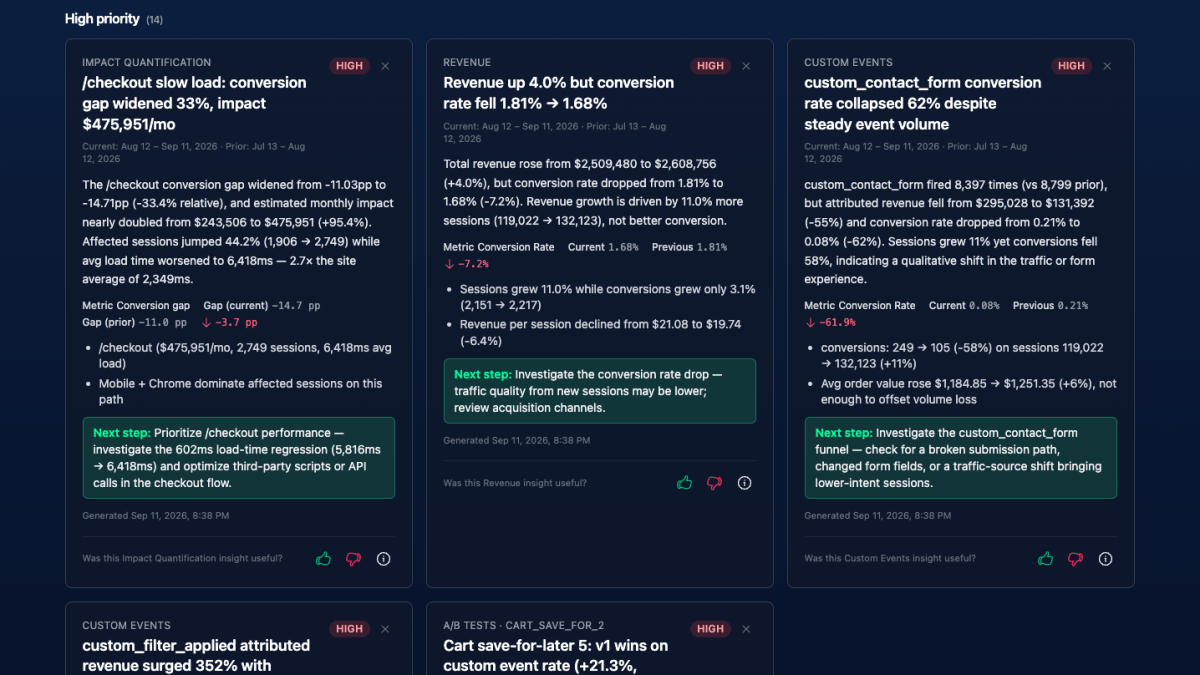
The Custom Events report on the Engagement tab starts as one row per event. Pick a single event to unlock:
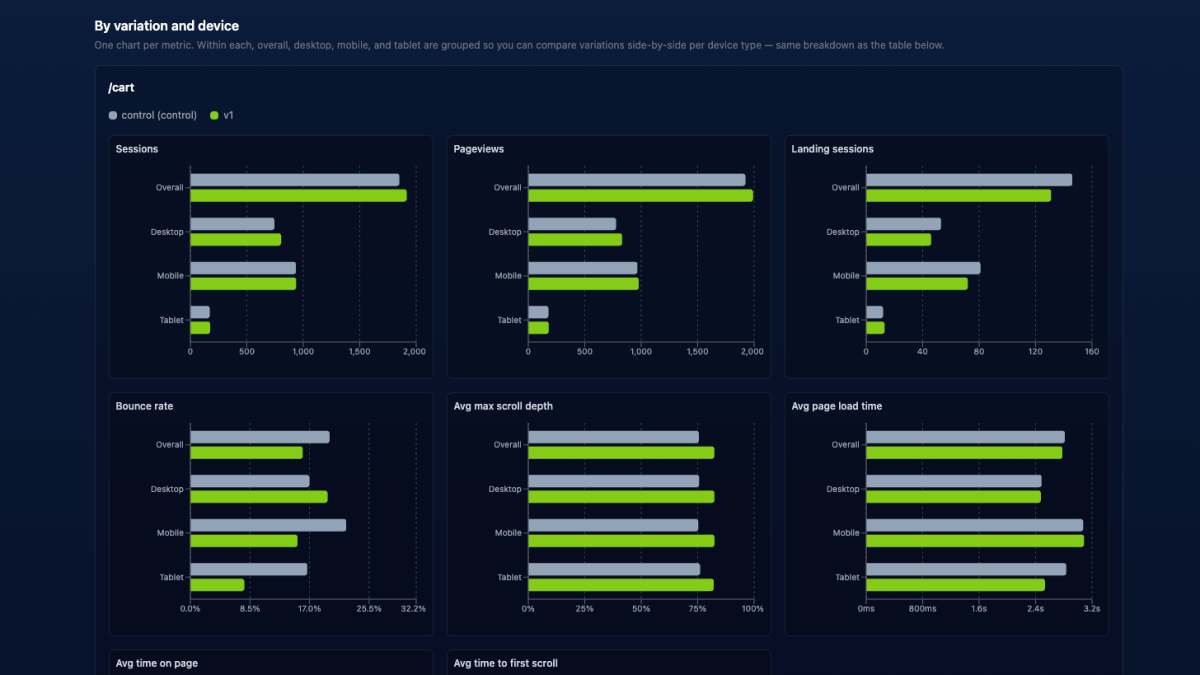
- Group by A/B flag — counts and rates by test, variation, and iteration.
- Group by page path — where the event actually fired.
- Group by metadata — any key you declared.
- A/B test filter — event rates inside one experiment, with lift and significance columns when a control arm exists.
- Compare to previous (on by default) or daily breakdown.
Events as test goals
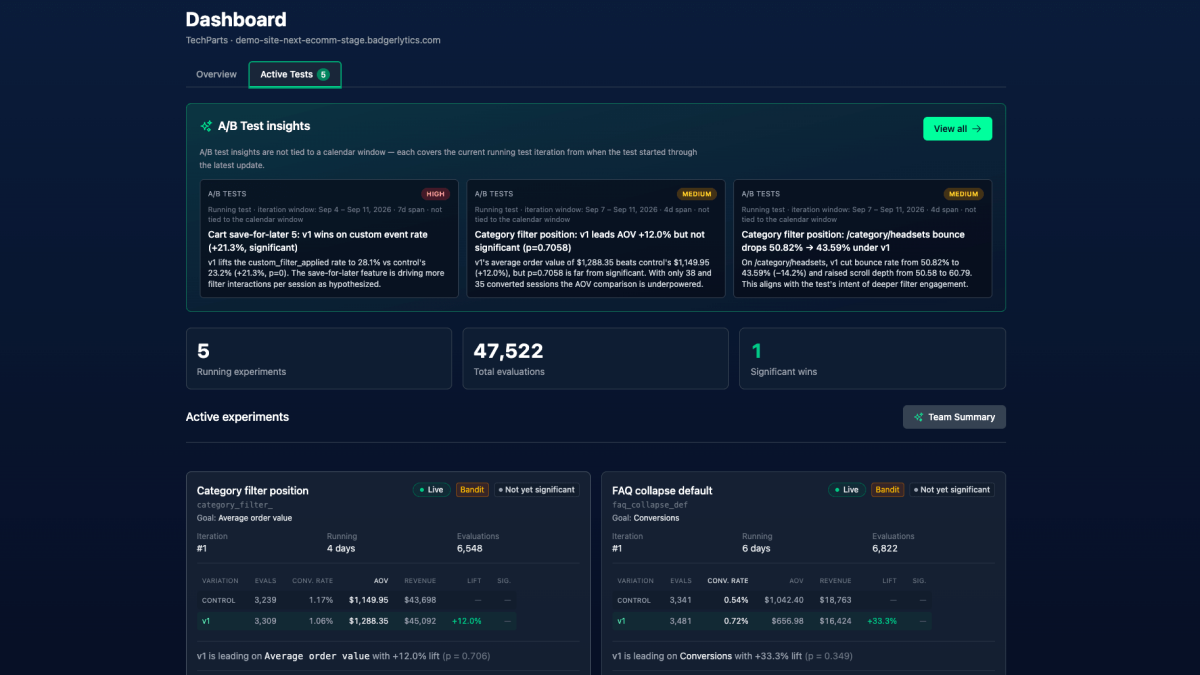
On an experiment, set the winning metric to a custom event and the test is decided on the per-session rate of that event. A pricing-page test judged on custom_trial_start. A product-page test judged on custom_add_to_wishlist. Details in the A/B testing post and Winning metric.
Housekeeping
- Plans cap active events per property: Starter 25, Pro 50, Business 100, Ultimate 200. Archive what you don't use.
- Keeping stage and production in sync? Copy to property… carries the registration (not the data) across, with create or overwrite options.
- One event per real-world action. Two near-identical tokens with different metadata usually means you wanted one event with a metadata field.
Full reference: Custom Events docs and How-to: Create a custom event. You can also ask the AI Chat Analyst things like "which custom events fired most in the last 7 days" and get a table back.
Quick answers
- What is a custom event in Badgerlytics?
- A named action you define — like a newsletter signup or a video play — that the tracking script records when your code calls trackCustomEvent() or when a visitor clicks an element you've configured. Custom events get their own report and can be used as funnel steps, audience conditions, and A/B test winning metrics.
- Can custom events fire without writing code?
- Yes. Choose the "On click (DOM-triggered)" option when creating an event and match elements by id or a data-* attribute. You can also capture metadata from the clicked element's data attributes.
- How many custom events can I have?
- Active (non-archived) events per property are capped by plan — 25 on Starter, 50 on Pro, 100 on Business, and 200 on Ultimate. Archived events don't count.